






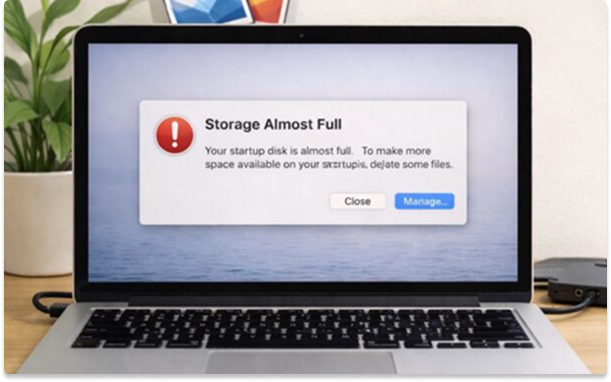
How to Free Up Storage Space Without Deleting Important Files
Apr 6, 2026

What’s Happening
Storage fills up over time due to large media files (photos, videos, downloads), hidden app data and cache, duplicate files or system and temporary files. When storage gets low, devices slow down, apps crash or behave unpredictably, and updates fail.
Quick Fix
If you just need immediate space:
- Empty Trash / Recycle Bin
- Delete large files from Downloads folder
- Clear cache from browser + social apps
- Remove 2–3 unused apps
Step-by-Step Fix
1. Identify What’s Taking Space
Windows
- Go to Settings → System → Storage
- Click Show more categories
- Look at:
- Apps
- Temporary Files
- Documents
Mac
- Go to Apple Menu → About This Mac → Storage
- Click Manage
- Review:
- Documents
- Applications
- System Data
Android
- Go to Settings → Storage
- Tap categories (Apps, Images, Videos)
iPhone
- Go to Settings → General → iPhone Storage
- Wait for breakdown to load
2. Remove Large Files
How to Find Them
- Sort files by size in:
- Downloads
- Videos
- Desktop
What to Delete or Move
- Old videos
- Installers (.exe, .dmg, .zip)
- Duplicate media
3. Move Files to Cloud
Options
- Google Drive
- iCloud
- OneDrive
Steps
- Upload files to cloud storage
- Confirm upload is complete
- Delete local copy
Pro Tip
Enable:
- “Optimize Storage” (Mac/iPhone)
- “Files On-Demand” (Windows OneDrive)
4. Delete Duplicate Files
Duplicates often come from:
- Downloads
- WhatsApp/Telegram media
- Edited photos
How to Fix
- Manually check folders
- Or use tools:
- Windows: Duplicate Cleaner
- Mac: Gemini
5. Clear App Cache
Android
- Settings → Apps
- Select app
- Storage → Clear Cache
iPhone
- No direct cache clear
(Delete & reinstall app)
Browsers (All Devices)
- Clear browsing data
- Remove cached images/files
6. Remove Unused Apps
Steps
- Go to Apps list
- Sort by size
- Remove apps you haven’t used in months
Tip
If unsure:
- Offload instead of deleting (iPhone feature)
7. Clean Temporary & System Files
Windows
- Settings → Storage → Temporary Files
- Select:
- Windows Update Cleanup
- Temp files
- Delete
Mac
- Use Storage Management → Optimize
- Restart system to clear temp memory
Advanced Fixes
- Use External Storage
- Move videos/photos to external drive
- Compress Files
- Zip large folders
- Reset Storage-Heavy Apps
- Example: WhatsApp, browsers
- Factory Reset
- Only if storage issues persist abnormally
When to Escalate
- Storage fills up again immediately
- “System Data” taking massive space (Mac/iPhone)
- Unknown files consuming storage