



How to Fix Laptop Overheating and Sudden Shutdowns


What’s Happening
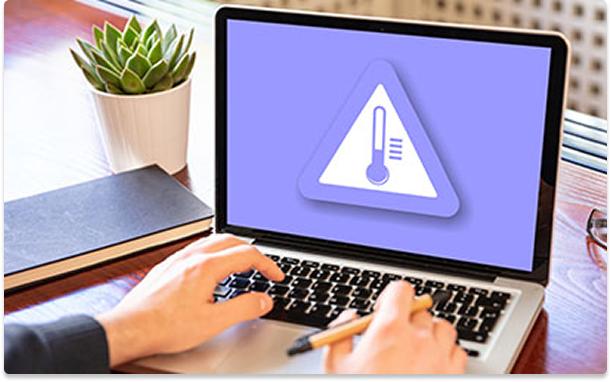
Laptop overheating happens when heat generation exceeds cooling capacity. Common causes are dust buildup blocking vents and fans, high CPU/GPU usage from heavy apps or background processes, poor airflow (using laptop on bed, lap, soft surfaces), aging thermal paste reducing heat transfer efficiency, or fan not working properly. When heat isn’t dissipated, the system slows down (thermal throttling), shuts down unexpectedly, or damages internal components over time.
Quick Fix
- Move laptop to a hard, flat surface (not bed/sofa)
- Close all unnecessary apps and browser tabs
- Restart the laptop
- Check if vents are blocked → clear visible dust
- Use in a cooler environment (avoid heat buildup)
Step-by-Step Fix
1. Improve Airflow (Most Overlooked Issue)
What to Do
- Always place laptop on:
- Table
- Desk
- Laptop stand
Avoid
- Beds
- Cushions
- Lap (blocks bottom vents)
2. Clean Air Vents and Fans
Dust is the #1 cause of overheating over time.
Basic Cleaning (No Opening Required)
- Turn OFF laptop
- Unplug charger
- Use:
- Compressed air (preferred)
- Soft brush
- Blow air into vents (short bursts)
Deeper Cleaning (Advanced Users)
- Open back panel (if comfortable)
- Clean:
- Fans
- Heat sinks
- Remove dust buildup carefully
3. Close Resource-Heavy Apps
High CPU = high heat.
Windows
- Press Ctrl + Shift + Esc → Task Manager
- Sort by CPU usage
- End unnecessary tasks
Mac
- Open Activity Monitor
- Sort by CPU
- Quit heavy apps
Common Culprits
- Chrome with many tabs
- Video editing software
- Games
- Background updates
4. Monitor CPU & Temperature
You need to confirm what’s causing the heat.
Tools
- Windows: Task Manager / HWMonitor
- Mac: Activity Monitor
What to Watch
- CPU usage (%)
- Sudden spikes
- Constant high usage
5. Update Drivers and System
Outdated drivers can cause inefficient hardware usage.
Windows
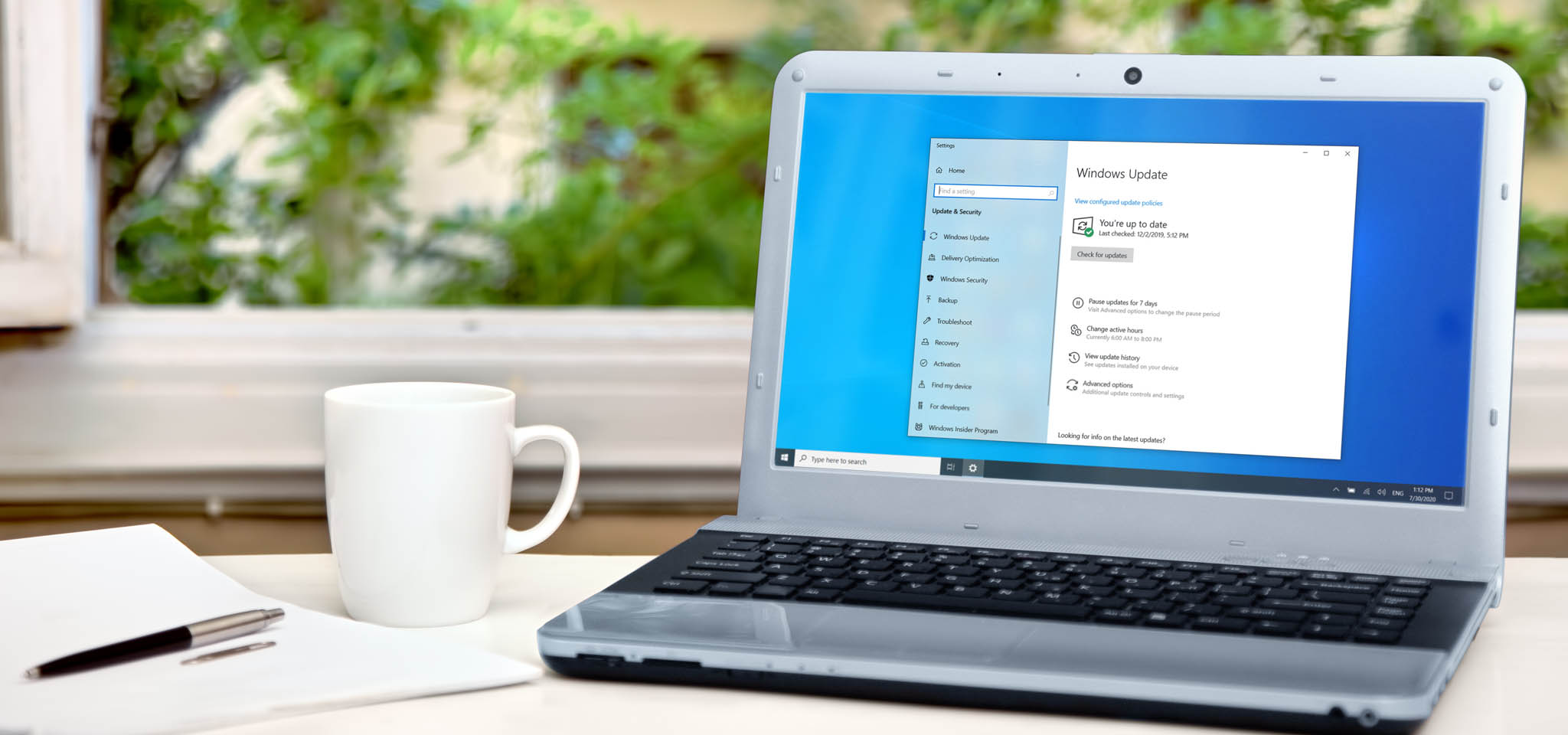
- Go to Settings → Windows Update
- Install updates
- Update graphics drivers
Mac
- Update macOS
6. Adjust Power Settings (Reduce Heat Output)
Windows
- Go to Control Panel → Power Options
- Select Balanced or Power Saver
Mac
- Enable Low Power Mode
7. Use a Cooling Pad or Stand
What It Does
- Improves airflow
- Adds external cooling fans
Advanced Fixes
1. Replace Thermal Paste (High Impact Fix)
Over time, thermal paste dries out → poor heat transfer.
What to Do
- Open laptop
- Remove old thermal paste
- Apply new paste
- Reassemble
2. Undervolt CPU (Advanced Users Only)
What It Does
- Reduces voltage → less heat → same performance
Tools
- Intel XTU
- ThrottleStop
3. Check Fan Functionality
Signs of Failure
- No fan noise
- Constant overheating
- Sudden shutdowns
Fix
- Replace fan if faulty
4. Limit Background Processes
- Disable startup apps
- Stop unnecessary services
When to Escalate
- Laptop shuts down due to heat
- Extremely hot even at idle
- Fan not spinning
- Loud grinding noise