






How to Secure Your Devices from Malware, Phishing, and Hacks

What’s Happening
Most devices get compromised not because of hackers breaking in, but because of outdated software with known vulnerabilities, weak or reused passwords, phishing attacks tricking users into giving access, or unsecured networks (public Wi-Fi, weak encryption).
Quick Fix
- Turn on automatic system updates
- Enable device lock (PIN, password, or biometrics)
- Turn on 2-Factor Authentication (2FA) for email
- Run a quick antivirus scan
Step by Step Fix
1. Update Your Operating System
Outdated systems are the #1 security risk.
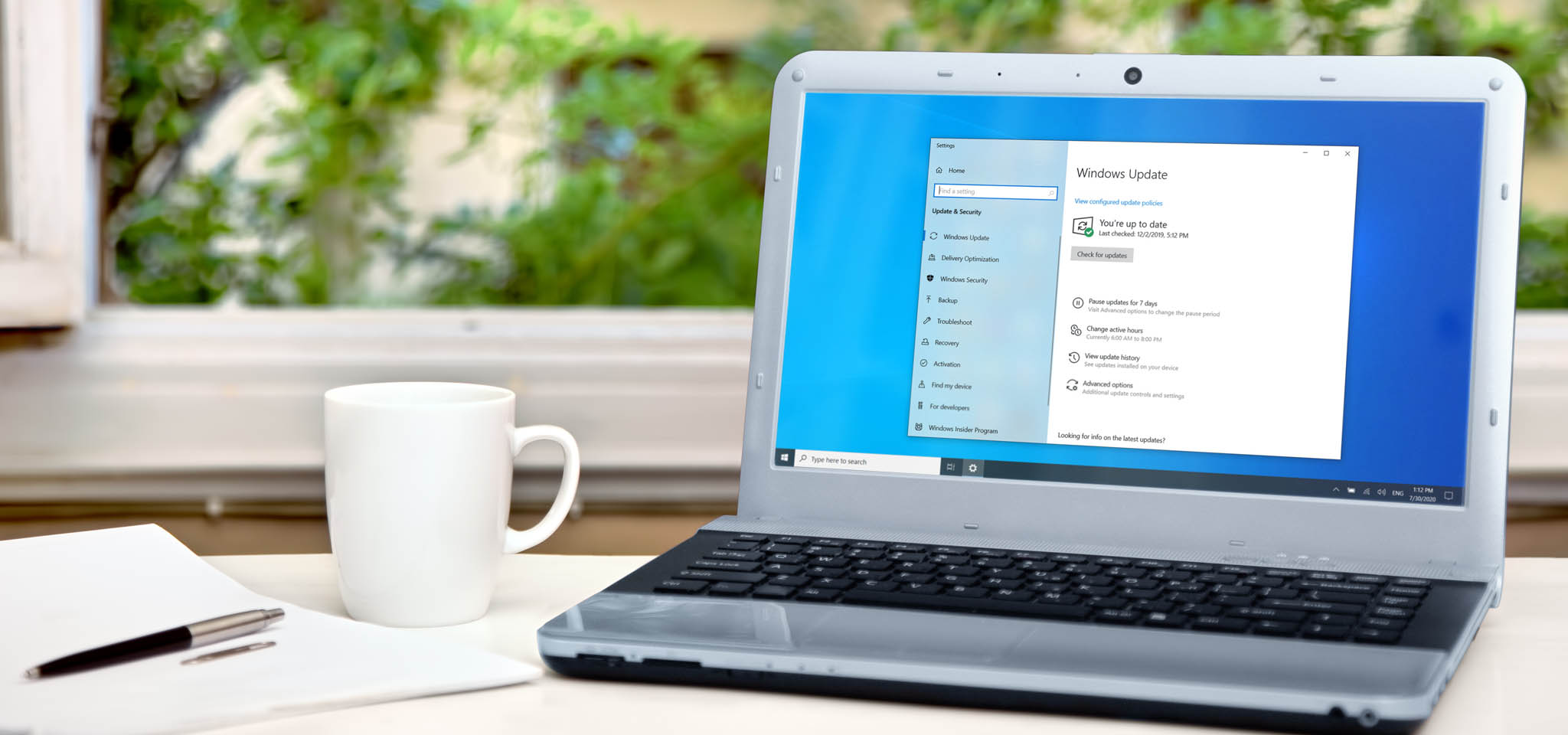
Windows
- Go to Settings → Windows Update
- Click Check for updates
- Install all available updates
- Turn ON Automatic Updates
Mac
- Go to System Settings → General → Software Update
- Install updates
- Enable Automatic Updates
Android
- Go to Settings → Security & Privacy → Updates
- Install latest update
iPhone
- Go to Settings → General → Software Update
- Enable Automatic Updates
2. Enable Antivirus / Security Protection
Windows
- Built-in: Windows Security (Defender)
- Open Windows Security
- Go to Virus & Threat Protection
- Run a Quick Scan
- Ensure Real-time protection = ON
Mac
- macOS has built-in protections (XProtect, Gatekeeper)
- Optional: install a trusted antivirus if needed
Mobile
- Avoid random antivirus apps
- Stick to trusted ones (if needed)
3. Use Strong, Unique Passwords
Weak passwords = instant compromise.
What to Do
- Use at least 12–16 characters
- Include:
- Uppercase
- Lowercase
- Numbers
- Symbols
Bad Example: password123
Good Example: T7#kL9!vQ2@zP4x
4. Enable Two-Factor Authentication (2FA)
Even if your password is stolen, 2FA blocks access.
Where to Enable First
- Email (Gmail, Outlook)
- Banking apps
- Cloud storage
How
- Go to account settings
- Find Security → 2FA / Two-Step Verification
- Enable:
- Authenticator app (preferred)
- SMS (backup option)
5. Avoid Phishing & Suspicious Links
Most hacks happen because users click something they shouldn’t.
Red Flags
- “Your account will be locked, click now”
- Unknown senders
- Fake login pages
What to Do
- Never click suspicious links
- Verify sender email carefully
- Type website URLs manually for important logins
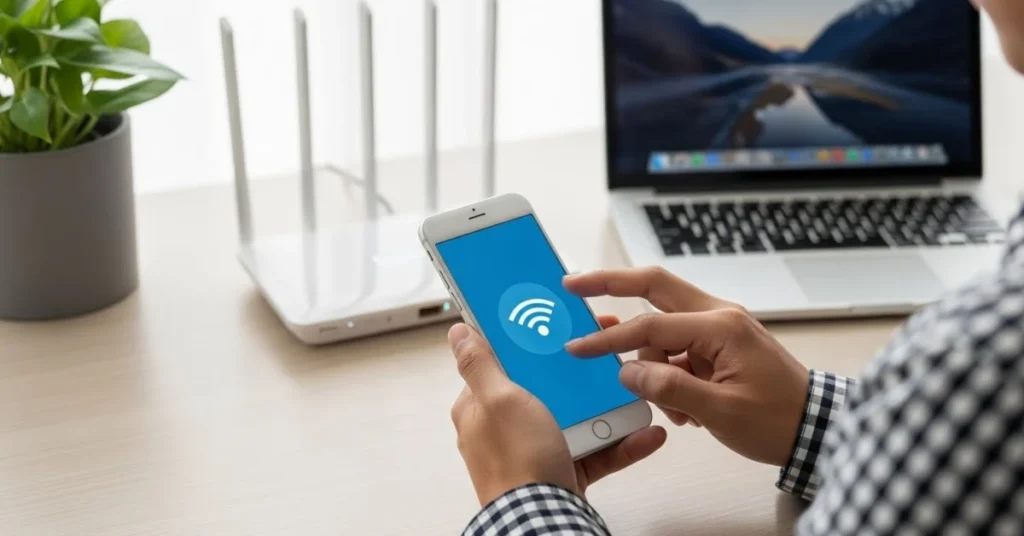
6. Secure Your Wi-Fi Network
At Home
- Log into router settings
- Set encryption to:
- WPA2 or WPA3
- Change default password
- Rename network (optional)
Avoid
- Public Wi-Fi for sensitive activity
- Open (no-password) networks
7. Lock Your Device Properly
What to Enable
- PIN / Password
- Fingerprint / Face ID
- Auto-lock (30–60 seconds)
Advanced Fixes
1. Use a Password Manager
Manages strong, unique passwords securely.
What It Does
- Stores passwords
- Auto-fills logins
- Generates secure passwords
2. Enable Firewall
Windows
- Go to Windows Security → Firewall
- Ensure all networks are ON
Mac
- Go to System Settings → Network → Firewall
- Turn ON
3. Monitor Account Activity
Check:
- Login history
- Unknown devices
- Suspicious sessions
4. Encrypt Your Device
Windows
- Enable BitLocker
Mac
- Enable FileVault
When to Escalate
- You notice unknown logins
- Passwords stop working suddenly
- Suspicious emails sent from your account
- Files locked or encrypted (possible ransomware)