






How to Fix Apps Crashing or Not Opening on Android, iPhone, Windows or Mac
Apr 6, 2026

What’s Happening
Apps crash due to corrupt cache, OS incompatibility, or memory shortage.
Quick Fix
- Restart device
- Update app
Step-by-Step Fix
1. Clear Cache (Android)
Settings → Apps → Storage → Clear Cache
2. Reinstall App
On Android
- Go to Settings → Apps
- Select the app
- Tap Uninstall
- Restart your phone
- Open Google Play Store
- Reinstall the app
On iPhone
- Press and hold the app icon
- Tap Remove App → Delete App
- Restart your device
- Open App Store
- Reinstall the app
On Windows
- Go to Settings → Apps → Installed Apps
- Select the app → Uninstall
- Restart your system
- Download latest version from official website
On Mac
- Drag app to Trash
- Empty Trash
- Restart
- Reinstall from App Store or official source
3. Check Permissions
On Android
- Go to Settings → Apps
- Select the app
- Tap Permissions
- Enable required permissions (especially: Storage, Camera, Microphone)
On iPhone
- Go to Settings
- Scroll to the app
- Enable necessary permissions
4. Update OS
On Android
- Go to Settings → Software Update
- Tap Download & Install
On iPhone
- Go to Settings → General → Software Update
- Install latest iOS version
On Windows
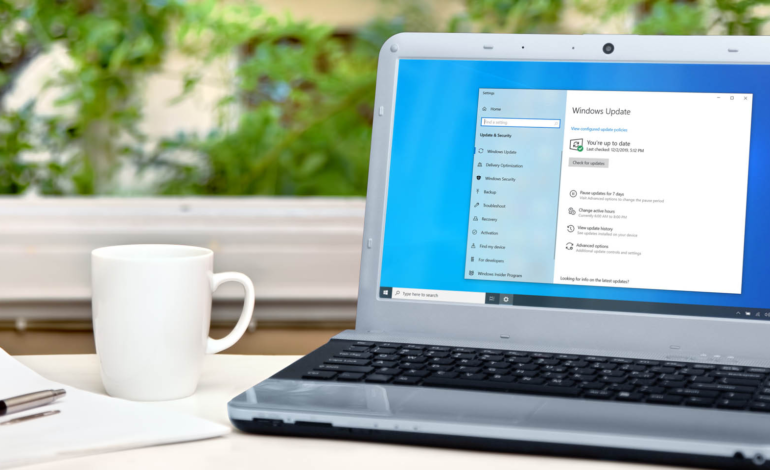
- Go to Settings → Windows Update
- Click Check for updates
On Mac
- Go to System Settings → General → Software Update
- Install updates
Advanced Fixes
- Check logs (desktop)
- Disable conflicting apps
When to Escalate
Apps crash on launch consistently.