



How to Fix Bluetooth Not Connecting (Earbuds, Keyboard, Mouse)


What’s Happening
Bluetooth issues usually come down to pairing conflicts (device already connected elsewhere), corrupt Bluetooth cache/settings, interference from nearby devices (Wi-Fi, other Bluetooth), outdated drivers or firmware or low battery affecting signal stability
Quick Fix
- Turn Bluetooth OFF → wait 10 seconds → ON
- Restart both devices (phone/laptop + accessory)
- Turn Airplane Mode ON → OFF
- Move devices closer (within 1–2 meters)
Step-by-Step Fix
1. Check If the Device Is Already Connected Elsewhere
Bluetooth devices often auto-connect to previously paired devices.
What to Do
- Turn off Bluetooth on other nearby devices
- Disconnect device from previously paired phone/laptop
2. Forget and Re-Pair the Device
On Android
- Go to Settings → Bluetooth
- Tap the device name
- Tap Forget / Unpair
- Turn Bluetooth OFF → ON
- Put device in pairing mode
- Reconnect
On iPhone
- Go to Settings → Bluetooth
- Tap (i) next to device
- Tap Forget This Device
- Restart Bluetooth
- Re-pair
On Windows
- Go to Settings → Bluetooth & Devices
- Click device → Remove Device
- Restart Bluetooth
- Click Add Device → Bluetooth
- Reconnect
On Mac
- Go to System Settings → Bluetooth
- Right-click device → Remove
- Restart Bluetooth
- Reconnect
3. Ensure the Device Is in Pairing Mode
- Earbuds → press & hold button
- Keyboard → hold pairing key
- Speakers → long-press power
If not in pairing mode, device won’t appear.
4. Check Battery Levels
Low battery = unstable or failed connection.
What to Do
- Charge both devices to at least 20–30%
- Try reconnecting
5. Remove Interference
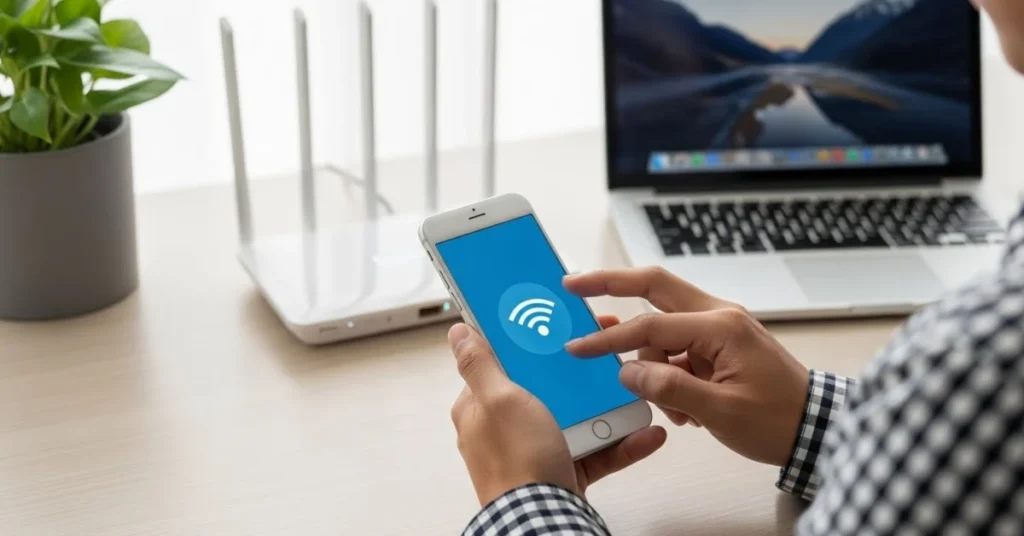
Bluetooth shares frequency with Wi-Fi (2.4 GHz).
What to Do
- Move away from:
- Wi-Fi routers
- Microwaves
- Other Bluetooth devices
- Turn off unused nearby Bluetooth devices
6. Update Bluetooth Drivers (Windows/Mac)
Windows
- Right-click Start → Device Manager
- Expand Bluetooth
- Right-click adapter → Update Driver
Mac
- Update macOS (drivers update automatically)
7. Reset Bluetooth Settings
Android
- Go to Settings → System → Reset Options
- Tap Reset Wi-Fi, Mobile & Bluetooth
iPhone
- Go to Settings → General → Transfer or Reset
- Tap Reset → Reset Network Settings
Advanced Fixes
1. Remove All Paired Devices
- Too many saved devices can cause conflicts
2. Check for Firmware Updates
- Use manufacturer app (Sony, Bose, etc.)
3. Restart Bluetooth Service (Windows Advanced)
- Press Win + R
- Type services.msc
- Restart Bluetooth Support Service
When to Escalate
- Device doesn’t appear on any device
- Connects but disconnects instantly
- Only one specific device fails